01 / A clearer screenshot
A little context goes a long way.
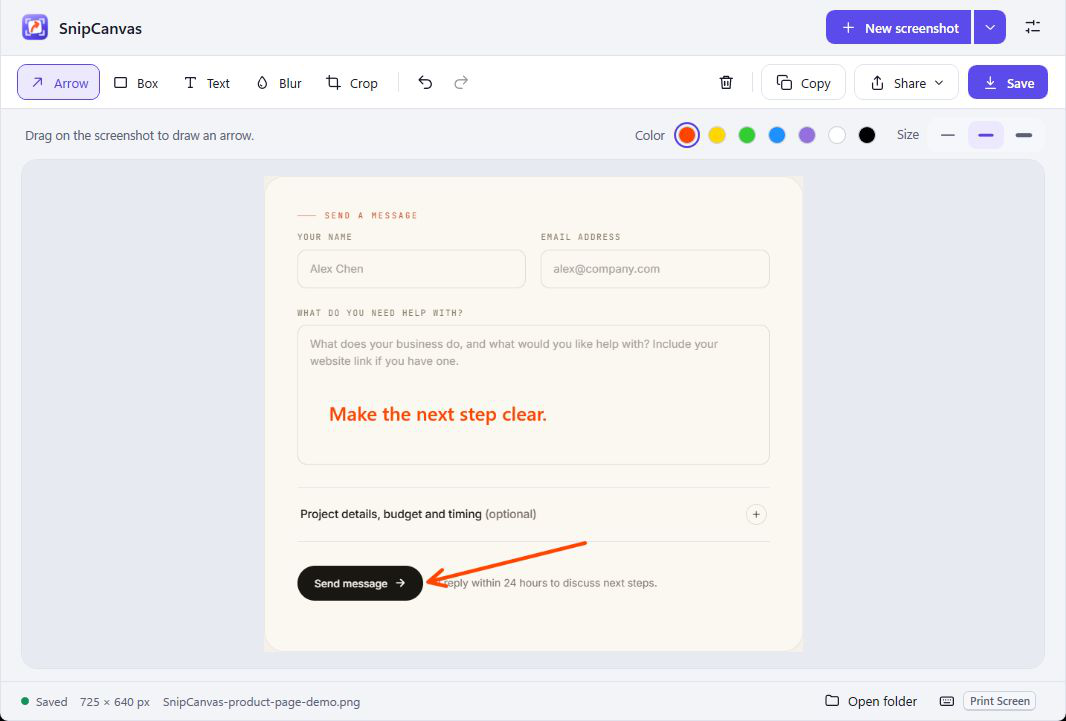
Point to a broken button in a bug report. Add a note to explain a design change. Crop away the rest, or blur an area to soften details.
Blur softens details. It is not secure redaction.
Screenshot capture for Windows
Capture the part of your screen you want to explain. Point with an arrow, add a note, blur an area, or crop. Then copy the image or save it as a PNG.
Local capture and editing. No SnipCanvas account. No automatic uploads.
Windows x64 · Installer + portable planned
Launch & Windows compatibility details ↓
SnipCanvasSettingsKeep the action close to the details.
How it works
Use your keyboard shortcut to select an area. Or choose an area, a window, or your main screen inside the app.
Point with an arrow, add a note, blur an area, or crop the image.
Copy the edited image to paste into another app, or save it as a PNG.
Choose where to share your screenshot. Review it, then send it yourself.
New captures go to your clipboard by default. After editing, use Copy image to include your changes.
Small tools, useful details
01 / A clearer screenshot
Point to a broken button in a bug report. Add a note to explain a design change. Crop away the rest, or blur an area to soften details.
Blur softens details. It is not secure redaction.
02 / Room to revise
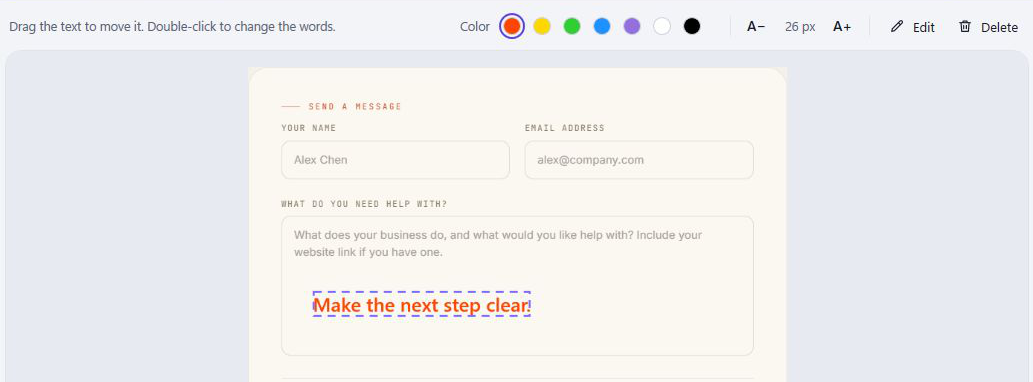
Move a note closer to the detail, resize it, change its color, or edit the wording. You can also delete it, undo a change, or redo it while the screenshot stays open.
03 / Close at hand
Close the window and SnipCanvas stays in the system tray. Use your capture shortcut from another app when you need the next screenshot.
Want SnipCanvas ready when you sign in? Turn on Start with Windows in Settings. It’s off by default.
Make SnipCanvas yours
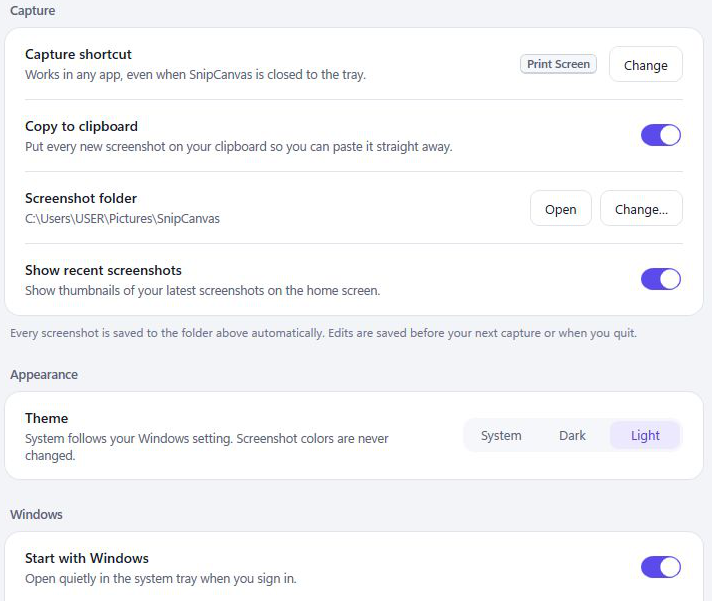
Choose a capture shortcut, a save folder, and a Light or Dark appearance. SnipCanvas saves these preferences on your computer as you change them.
The example uses Ctrl + Alt + P. Choose your own combination under Global shortcut in Settings.
Keep Copy new screenshots on to put each capture on your clipboard. Use Copy image again after editing.
Choose Light or Dark for the app. Your screenshot’s colors stay the same.
Pictures\SnipCanvasOn your computer
SnipCanvas captures and edits locally. Nothing is uploaded automatically.
Choose a screenshot folder in Settings. New installations start with Pictures\SnipCanvas.
Unsaved screenshots and edits are automatically saved before another capture and when quitting. Use Open folder to reach your saved PNGs.
Windows Share opens the Windows sharing panel so you can pass the PNG to a compatible installed app.
WhatsApp Web and Telegram Web copy the screenshot and open the web app. Choose a chat, paste, review, and send.
Email opens a draft and copies the image. Paste it into the draft or attach the PNG yourself. It is not attached automatically.
SnipCanvas does not choose recipients or send messages.
Built to be useful
I’m preparing SnipCanvas for an open-source launch. Once the project is public, you’ll be able to explore the code, report a bug, or contribute a change.
Source, license, and contribution links will be added here when they’re ready.
Purchase & support
A paid edition of SnipCanvas is planned as a one-time purchase with no automatic renewal. Final pricing, included features, device limits, and update entitlements will be published here before paid orders open.
Paid software purchases have a 14-day refund window. Downloads and any required licence instructions are delivered electronically under the Digital Delivery Policy.
Developed by Sanjay Ahlawat, trading as AHLAWAT SOLUTIONS. Contact me if you have a question about compatibility or the planned release.
A few things to know
SnipCanvas is coming soon. A public release date has not been announced. Windows downloads and release details will be available here when it launches.
SnipCanvas is a Windows screenshot app being prepared for public release. Capture an area, a window, or your main screen, then add context with arrows, text, blur, or a crop. Copy the result or save it as a PNG.
SnipCanvas is built and tested on Windows 11 x64. Windows 10 version 2004 or later is targeted but has not been manually tested. The distributed builds need no separate .NET installation.
Yes. Capture, editing, copying, and saving work offline on your computer. No SnipCanvas account is needed. Web sharing options need an internet connection.
Choose your screenshot folder in Settings. New installations default to Pictures\SnipCanvas. Unsaved screenshots and edits are automatically saved before another capture and when quitting. Use Open folder to find your saved PNGs.
No. New captures go to your clipboard by default, but SnipCanvas does not automatically upload them, choose recipients, or send messages. Sharing is a separate step: choose a destination, review the screenshot, and send it yourself.
In Settings, click Global shortcut and choose a key combination. The example uses Ctrl + Alt + P; the default is Print Screen. Windows’ “Use the Print Screen key to open screen capture” setting or another screenshot app may take Print Screen. Check those settings or choose another combination. SnipCanvas must be running for the shortcut to work, including from the tray.
No. Closing the window keeps SnipCanvas in the system tray. Choose “Quit SnipCanvas” from the tray to exit. Unsaved work is automatically saved when quitting.
No. Blur softens details; it does not guarantee permanent removal of sensitive information. Do not rely on blur for secure redaction. Review your screenshot before sharing.
The current application and installer are unsigned: they do not have a digital signature. Windows may show an installation or reputation warning. Review the source and the information Windows provides before deciding whether to install.
The public repository and issue tracker are not available yet. Links will appear here at launch so you can report bugs, suggest improvements, or contribute code.

Coming soon
I’m preparing the first public release of SnipCanvas for Windows. Download links will appear here when it’s ready.